How a filename convinces you to trust the wrong parser
You see quarterly_report.pdf in your downloads folder. Nice PDF icon, normal-looking name, nothing weird. You double-click it. Whoopsies! It was not a PDF.
The important part is not that an extension can “lie.” A filename is only one claim about a file. Explorer uses the name to choose an icon and an associated application. A scanner may inspect the first few bytes. An archive tool may look at structures near the end. The application that finally opens it has its own parser and its own idea of what counts as valid.
Usually those layers agree, so we stop thinking about them. File spoofing lives in the gaps where they do not.
The Right-to-Left Override (RTLO)#
This one is my personal favourite, and it is the technique behind my old tool ExtensionSpoofer.
Unicode includes a Right-to-Left Override character, U+202E, for bidirectional text. Put it in a filename and the characters after it can be displayed in reverse order:
test_application[U+202E]gnp.exemay be rendered as:
test_applicationexe.pngThe bytes did not become a PNG. The extension did not change. Only the visual order of part of the name changed, which is enough to fool a person who reasonably assumes that the text on screen represents the actual name.
I wrote ExtensionSpoofer in 2018 to demonstrate the trick and pair the displayed name with a convincing icon. It was mostly undetected when I first released it, then security products started recognising the pattern. GitHub later showed roughly 16,000 downloads, and I found copies redistributed on forums, including paid ones. I am not claiming responsibility for antivirus vendors noticing RTLO, but I would like to think the tool annoyed at least a few of them.
While looking for redistributions of my software, I also found this unexpected use of another tool I wrote:
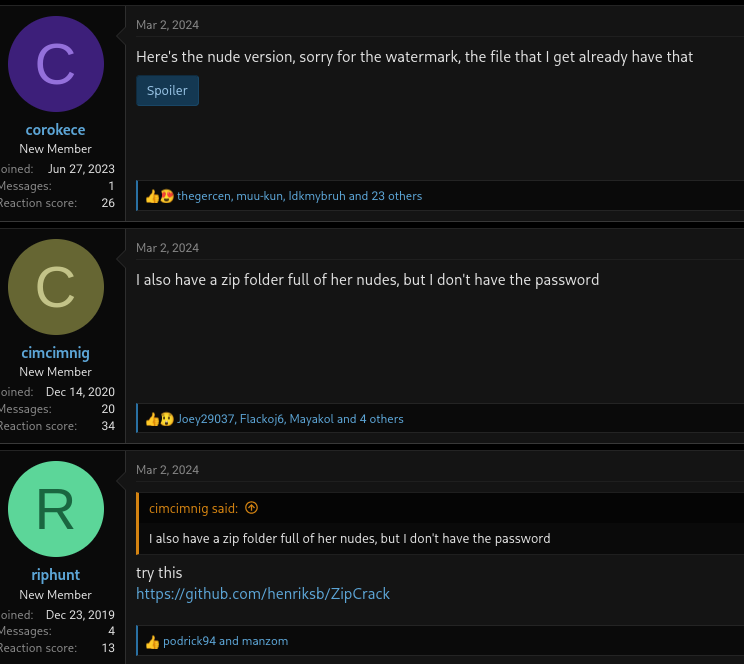
MITRE tracks this specific behaviour as Right-to-Left Override, T1036.002.
LNK files: the icon is not the target#
A Windows .lnk file is not a document. It is a shell-link structure containing a reference to another target, plus display metadata such as an icon and description. That separation is useful for normal shortcuts, but it also creates another disagreement: Explorer can show the shortcut as one thing while the stored target points somewhere else.
Explorer commonly hides the .lnk suffix independently of the normal “show file extensions” setting. A shortcut named like a document can therefore look like the document itself, especially if it borrows the expected icon. The shortcut-arrow overlay is a useful clue when it appears, but it is decoration, not a security boundary. Themes, registry changes, and different shell views can change or remove it.
The correct question is not “does the icon look right?” It is “why did I receive a shortcut where I expected a document?” If a download or attachment unexpectedly resolves to a shell link, stop there and inspect the target rather than opening it.
Microsoft documents the fields and purpose of the format in the Shell Link (.LNK) specification.
Long names and double extensions#
These are less clever, but they exploit the same trust gap.
totally_legit_document.pdf .exeA narrow Explorer column, notification, or attachment preview may truncate the right side and leave only the comforting part visible. Nothing magical happened to the file. The interface simply did not show the part that mattered.
Double extensions work similarly:
report.pdf.exeIf known extensions are hidden, the last suffix may disappear. Even when it is visible, people often recognise the first familiar suffix and stop reading. Showing extensions is still worth doing, but it only gives you more evidence. It does not verify the file’s contents.
Alternate Data Streams (ADS)#
NTFS files can have more than one data stream. The unnamed $DATA stream is what most applications mean when they open a normal path. A file or directory can also have named streams addressed with syntax such as filename:streamname.
This is old NTFS functionality from the Windows NT era, not something introduced with Windows Vista. Vista is merely the oldest client supported by the current Sysinternals Streams release.
Named streams are not automatically malicious. Windows itself uses the Zone.Identifier stream for Mark of the Web, which records that a file came from an untrusted zone and helps trigger warnings and policy checks. Other software can store metadata there as well.
They do create visibility problems:
- Explorer’s ordinary size and content views focus on the unnamed stream.
- A hash calculated from the normal file path usually covers the unnamed stream, not every named stream attached to it.
- Copying to a file system or through a tool that does not support named streams may discard them.
- A scanner has to enumerate streams deliberately if it wants to inspect all of them.
That does not make ADS an executable format by itself. Something still has to read or act on the named stream. The problem appears when one component inventories only the default stream while another component later consumes additional data.
For inspection, Windows provides dir /R; PowerShell can enumerate streams with Get-Item -Stream *; and Microsoft’s Sysinternals Streams utility can scan them recursively. Microsoft also documents the underlying model in File Streams.
Archives add another parser#
A ZIP, RAR, 7z, or ISO is a container. It adds one more layer between the thing you received and the files eventually opened.
A mail gateway may recognise the outer archive, unpack it, classify every member, and apply policy recursively. Or it may fail on an unsupported format, an excessive nesting depth, or encrypted content. Password protection is especially simple: without the password, a scanner cannot meaningfully inspect the contents.
Modern Office formats such as .docx, .xlsx, and .pptx are ZIP-based containers too. That is normal and useful. It also means that “the extension says document” is still only the outer description of a collection of files interpreted by a much more complicated parser.
An archive is not dangerous by default, and it is not a magic bypass. It just moves the trust decision. You still need to inspect what came out before treating it as the document you expected.
Polyglot files#
Polyglots are the cleanest example of parser disagreement because the file can genuinely satisfy more than one format.
Different formats care about different structures. JPEG readers expect characteristic marker bytes. PDF readers search for PDF objects and cross-reference data. ZIP readers locate their central directory near the end. If two sets of rules do not conflict, one byte sequence can be accepted by both parsers.
That does not mean every polyglot is malicious. It means “valid according to parser A” does not prove “contains nothing meaningful to parser B.”
JPCERT/CC documented a MalDoc-in-PDF sample that combined PDF structure with Word/MHTML content. The campaign used a .doc extension, so Windows opened it with Word; PDF-focused tools could still recognise and analyse the PDF portion while missing the behaviour exposed to Word. That detail matters. The file did not somehow execute merely because a PDF reader saw it. The chosen application decided which interpretation became active.
MITRE groups this broader behaviour under Masquerade File Type, T1036.008.
The actual trust problem#
All of these tricks rearrange the same chain:
- Origin: Where did the file come from, and was provenance preserved?
- Presentation: What name, icon, and preview did the shell show?
- Classification: What did the scanner or gateway decide it was?
- Parsing: Which application eventually interpreted the bytes?
- Capability: What was that application allowed to execute or access?
An attacker does not need to defeat every layer. They only need an early layer to approve one interpretation and a later, more powerful layer to act on another.
That is also why “be careful” is such useless advice. Careful about which representation? If the interface hides the extension, the icon is attacker-controlled, and the scanner picked the wrong parser, a user can inspect exactly what they were shown and still reach the wrong conclusion.
What I actually check#
- I keep extensions visible, while remembering that an extension is still metadata.
- I treat an unexpected shortcut, archive, disk image, or executable as a change in the deal. If someone promised a PDF and sent something else, I want an explanation before opening it.
- I preserve Mark of the Web and pay attention when Windows says a file came from the internet. Stripping that metadata removes useful context.
- For suspicious files, I compare the extension with the detected format and inspect nested contents in an isolated environment.
- I use application control and sandboxing for the final parser. Identification can fail; limiting capability is what keeps that failure boring.
- I query hashes before uploading anything private to a public scanning service. Uploading a confidential file to VirusTotal is still uploading a confidential file.
Awareness helps, but consistent classification and limited execution rights help more. A blue arrow, a familiar icon, or .pdf at the end of some visible text is not a trust decision.
And yes, not using Windows avoids several tricks on this page. It does not make parser disagreement disappear. Annoying, I know.
— Henrik